Controls: Steam®
If the game is running slowly, adjusting the graphics settings from the Options menu can help resolve the issue.
Gamepad Controls
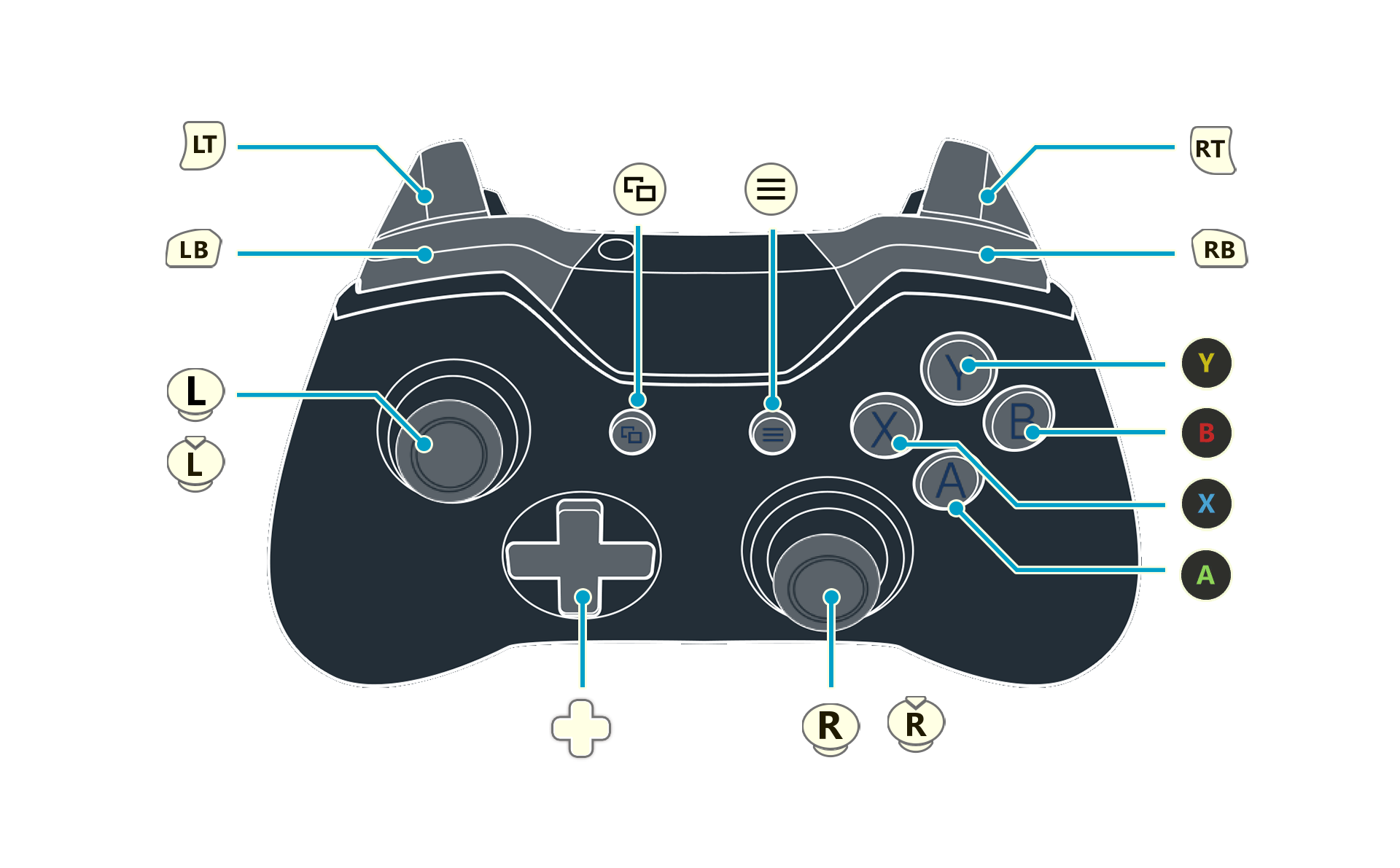
Detailed key guide will be displayed on the bottom right of the game screen.
Basic Controls (for all screens)
 |
Confirm |
|---|---|
 |
Cancel Return |
 / / |
Select Item |
Exploration Controls
The controls used to adjust the camera zoom can be changed under Camera on the Options menu.
|
Examine Gather |
|---|---|
|
Jump |
 |
Swing (Hold) Charged Swing |
 |
Open Main Menu (Hold) Display PC Menu |
 |
Display Quests |
 |
Display World Map Skip (during events) (Hold) Switch Minimap |
|
Move |
 |
Camera Controls |
 (Hold) + (Hold) + |
Run (Default) |
 (Hold) + (Hold) + |
Switch Gathering Tool |
|
Sprint ON/OFF (can be changed in Settings) |
 |
Zoom Out |
 |
Zoom In |
 |
Open Photo Mode |
 |
Reset Camera |
 |
Display Event Log |
 |
Display Area Map |
 (Hold) + (Hold) + |
Select Emote |
 |
Display Item Menu |
| (Hold) |
Place Marker (on the Area Map) |
|---|---|
| (Tap) |
Fast Travel to Landmark (on the Area Map) |
|
Return to Base |
|
Open Main Menu (on the World Map) Display Area Map Details (on the Area Map) |
|
Display Quests |
|
Display All Regions (on the World Map) Display World Map (on the Area Map) |
|
Move Cursor |
|
Toggle Region (on the World Map) Change Icon Display (on the Area Map) |
|
Toggle Region (on the World Map) |
| (Hold) + |
Move Cursor Faster (on the Area Map) |
|
Zoom Out (on the Area Map) |
|
Zoom In (on the Area Map) |
|
Open Exploration List (on the Area Map) |
| (Hold) |
Display Help |
|
Reset Cursor (on the Area Map) |
 |
Select Area (on the World Map) Select Landmark (on the Area Map) |
|
Select Material Loop, Ingredients, Effects, etc. Synthesize Ingredients (When you have insufficient ingredients while adding ingredients) |
|---|---|
| (Hold) |
Fast-Forward Synthesis |
|
Mark/Unmark as Favorite (when choosing a recipe) Change Display (when adding ingredients or using keys) |
|
Check Tree (when choosing a recipe) Display Submenu (when adding ingredients) Use Secret Key (when ready to synthesize) |
|
Start Synthesis (when ready to synthesize) |
|
Display Related Items |
| / |
Move Cursor |
|
Toggle Loop Info (when choosing a Material Loop) Mark/Unmark as Favorite (when adding ingredients or using keys) |
|
Auto-Add Materials (when choosing a Material Loop) Add All (when adding ingredients) Switch between Key Bundle / Container (when using keys) |
| / |
Change Mode (when choosing a recipe) Zoom In/Out (when choosing a Material Loop) |
|
Link Morph (when ready to synthesize) |
|
Attack |
|---|---|
| (Hold) |
Fast-Forward Fatal Drive |
|
Fatal Drive (when conditions are met) |
|
Flee |
|
Use Item / Secret Key |
|
Guard |
|
Display Pause Screen |
|
Display Commands / Skills |
|
Camera Controls |
|
Key Creation (Item Selection Screen) |
|
Key Modification (Item Selection Screen) |
| +/ |
Shift Skills |
| +/// |
Use Skill |
| + |
Order Drive (when conditions are met) |
| / |
Change Player Character |
|
Toggle Mode |
 |
Change Target |
Keyboard & Mouse
The control guide displayed in the game conforms to the QWERTY keyboard layout.
The controls used to adjust the camera zoom can be changed under Camera on the Options menu.
Basic Controls (for all screens)
 |
Confirm |
|---|---|
  |
Cancel Return |
        |
Select Item Up: |Down: |Left: |Right: |
|
Examine Gather |
|---|---|
 |
Jump Skip (during events) |
|
PCMenu |
  |
Swing |
| (Hold) (Hold) |
Charged Swing |
 |
Open Main Menu |
 |
Display Quests |
  |
Display World Map |
|
Move Forward: | Backward: |Left: |Right:
|
 (Hold) + (Hold) + |
Run (Default) Forward: | Backward: |Left: |Right: |
|
Camera Controls |
 (Hold) + (Hold) + (Mouse Movement) (Hold) + (Mouse Movement) (Hold) + |
Switch Gathering Tool |
|
Sprint ON/OFF (can be changed in Settings) |
   |
Zoom Out Zoom In |
 |
Open Photo Mode |
 |
Reset Camera |
 |
Display Event Log |
 |
Display Area Map |
 (Hold) + (Mouse Movement) (Hold) + (Hold) + (Mouse Movement) (Hold) + |
Select Emote |
 |
Display Item Menu |
| (Hold) |
Place Marker (on the Area Map) |
|---|---|
| (Tap) |
Fast Travel to Landmark (on the Area Map) |
|
Return to Base |
|
Open Main Menu (on the World Map) Display Area Map Details (on the Area Map) |
|
Display Quests |
 |
Display All Regions (on the World Map) |
|
Display World Map (on the Area Map) |
|
Move Cursor Up: |Down: |Left: |Right: |
|
Toggle Region (on the World Map) Change Icon Display (on the Area Map) |
|
Toggle Region (on the World Map) |
| (Hold) + |
Move Cursor Faster (on the Area Map) |
|
Zoom Out (on the Area Map) Zoom In (on the Area Map) |
 |
Open Exploration List (on the Area Map) |
| (Hold) |
Display Help (on the Area Map) |
 (Hold) (Hold) |
Display Help (on the World Map) |
 |
Reset Cursor (on the Area Map) |
|
Select Area (on the World Map) Select Landmark (on the Area Map) |
|
Select Material Loop, Ingredients, Effects, etc. Synthesize Ingredients (When you have insufficient ingredients while adding ingredients) |
|---|---|
| (Hold) (Hold) |
Fast-Forward Synthesis |
|
Change Display (when adding ingredients or using keys) |
|
Display Submenu (when adding ingredients) |
|
Link Morph (when ready to synthesize) |
|
Use Secret Key (when ready to synthesize) |
|
Start Synthesis (when ready to synthesize) Check Tree (when choosing a recipe) |
|
Display Related Items |
|
Move Cursor Up: |Down: |Left: |Right: |
|
Toggle Loop Info (when choosing a Material Loop) |
|
Switch between Key Bundle / Container (when using keys) Auto-Add Ingredients (when adding ingredients) |
  |
Change Mode (when choosing a recipe) |
|
Zoom Out (when choosing a Material Loop) Zoom In (when choosing a Material Loop) |
|
Attack |
|---|---|
| (Hold) (Hold) |
Fast-Forward Fatal Drive |
 |
Fatal Drive (when conditions are met) |
| +/// |
Use Skill |
|
Flee |
|
Use Item |
|
Guard |
|
Display Pause Screen |
|
Display Character / Enemy Info (Pause Screen) |
|
Camera Controls |
Left-click on the Icon |
Key Creation (Item Selection Screen) |
Left-click on the Icon |
Key Modification (Item Selection Screen) |
| +/ |
Shift Skills |
+  |
Order Drive (when conditions are met) Up: |Down: |Left: |Right: |
|
Change Player Character |
|
Toggle Mode |
|
Change Target |