Map
World Map
Press the assigned button to open the World Map while exploring.
| Open World Map | |||
|---|---|---|---|
| PS5® PS4® |
Switch™2 Switch™ |
Steam® | |
| PCGamepad | Keyboardand Mouse | ||
 |
 |
 |
  |
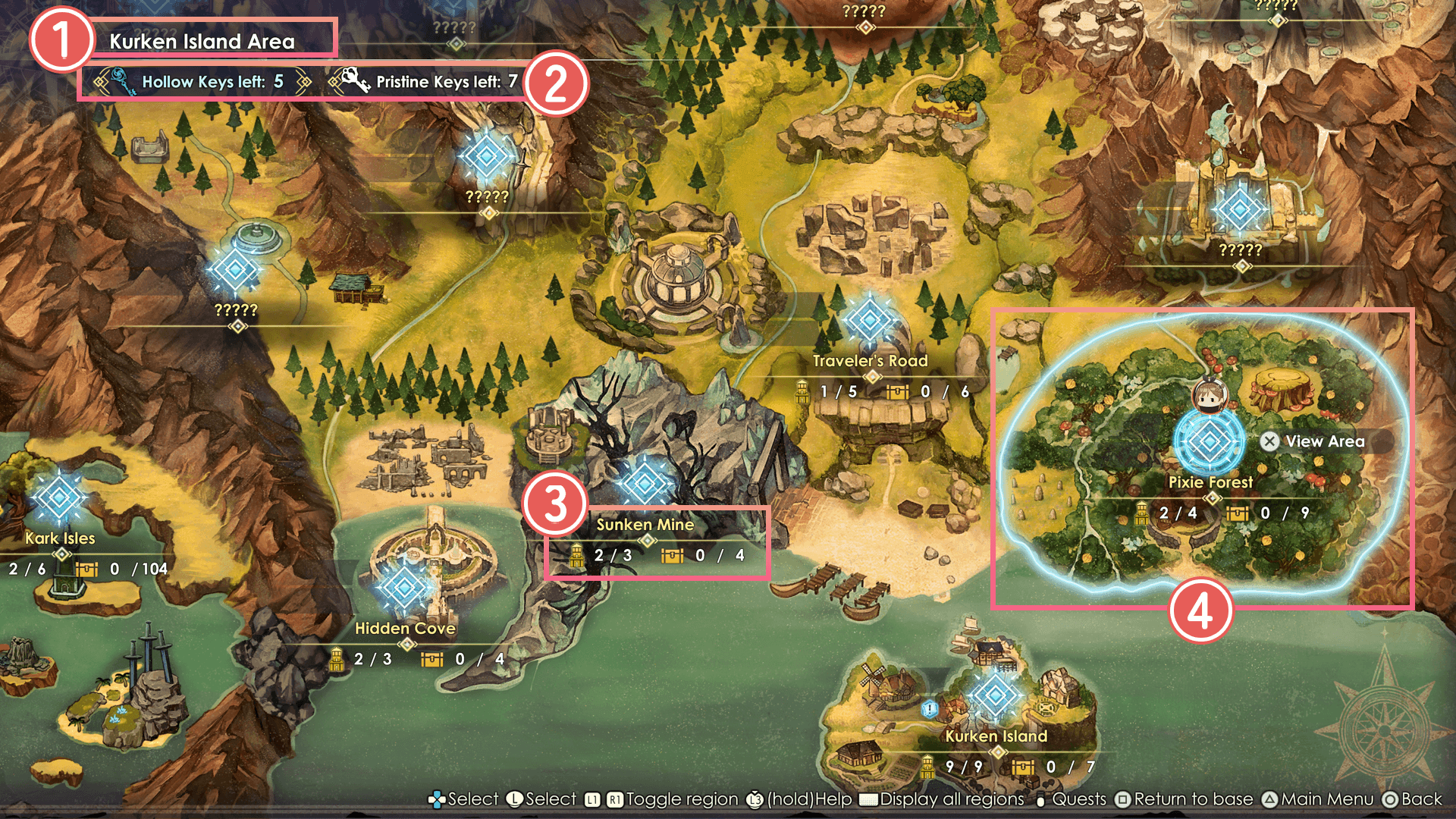
 Region
The name of the region currently shown on the map.
Press the assigned button to switch between regions.
| Change regions | |||
|---|---|---|---|
| PS5® PS4® |
Switch™2 Switch™ |
Steam® | |
| PCGamepad | Keyboardand Mouse | ||
 / / |
 / / |
 / / |
  |
 Hollow Keys / Pristine Keys
The number of Hollow Keys left to use, and the number of Pristine Keys attached to your key bundle.
 Area Info
Shows the number of previously discovered landmarks, as well as the number of treasure chests opened.
* The number of special treasure chests from Random Quests are not included.
 Current Location
The current location of Ryza and her friends.
Area Map
Press the assigned button to open the Area Map while exploring.
You can also open the Area Map by choosing an area or a landmark from the World Map.
| Open Area Map | |||
|---|---|---|---|
| PS5® PS4® |
Switch™2 Switch™ |
Steam® | |
| PCGamepad | Keyboardand Mouse | ||
 |
 |
 |
 |
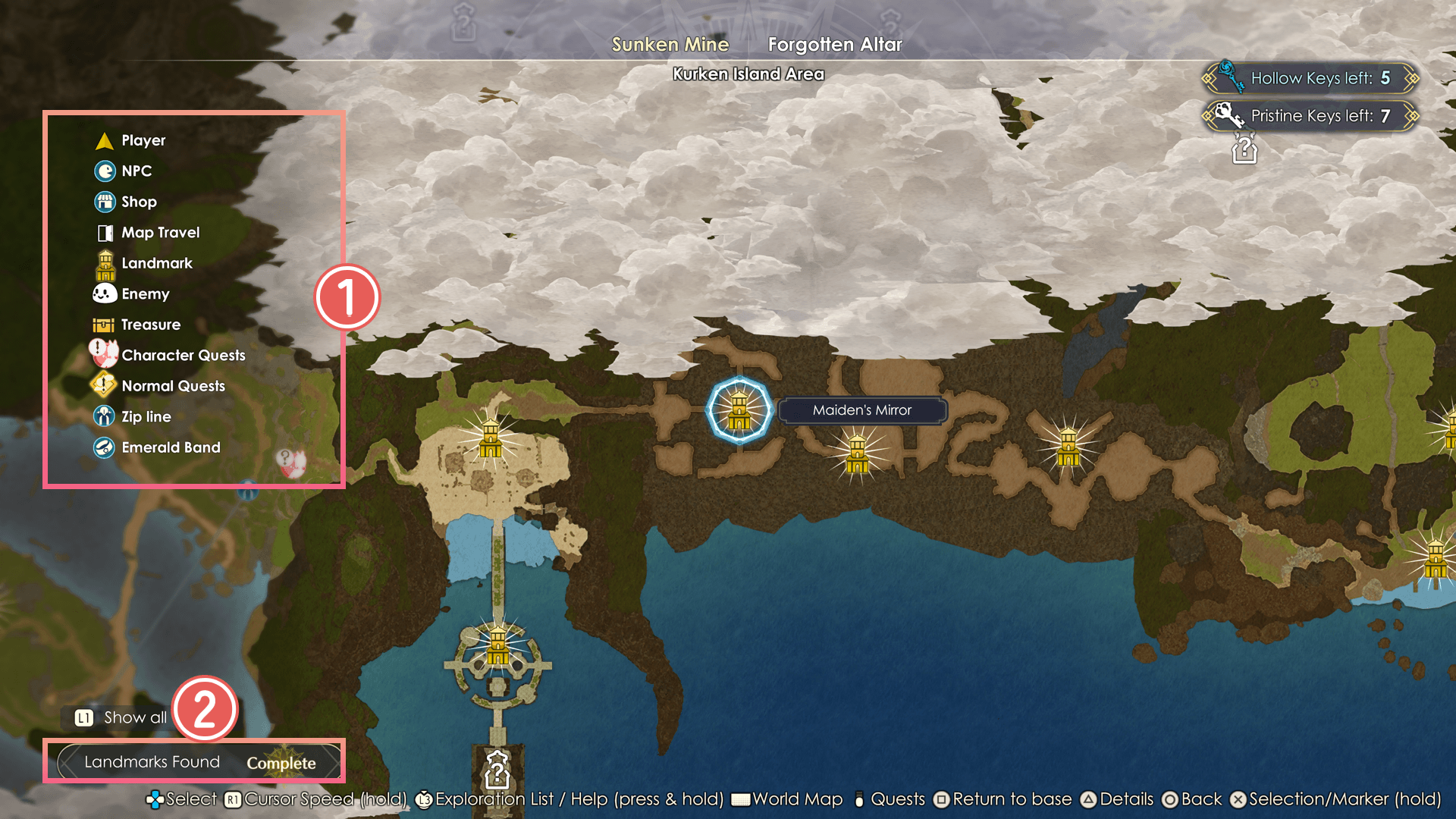
Legend (Icons)
You can change the various information displayed on the Area Map. Press the assigned button to change the displayed icons.
| Toggle displayed icons | |||
|---|---|---|---|
| PS5® PS4® |
Switch™2 Switch™ |
Steam® | |
| PCGamepad | Keyboardand Mouse | ||
|
|
|
|
Landmarks Found
This indicates the number of landmarks you have found within the area.
A "Complete" sign will appear once you discover all the landmarks within the area.
Details on Area Map
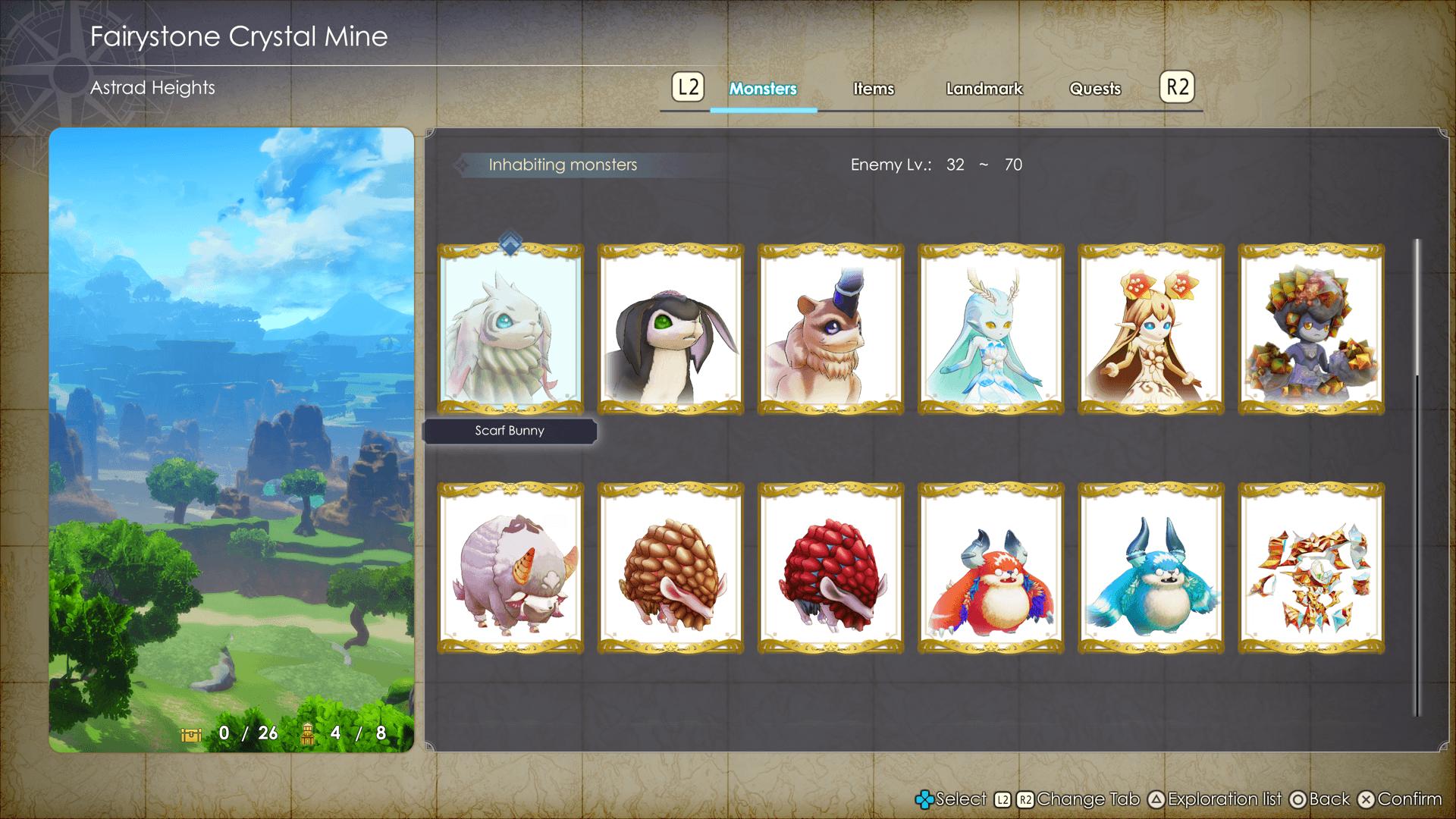
You can check which monsters and items you can find in each area.
| Show details (on Area Map) | |||
|---|---|---|---|
| PS5® PS4® |
Switch™2 Switch™ |
Steam® | |
| PCGamepad | Keyboardand Mouse | ||
 |
 |
 |
 |
Using the Map
Using Landmarks to Uncover the Map
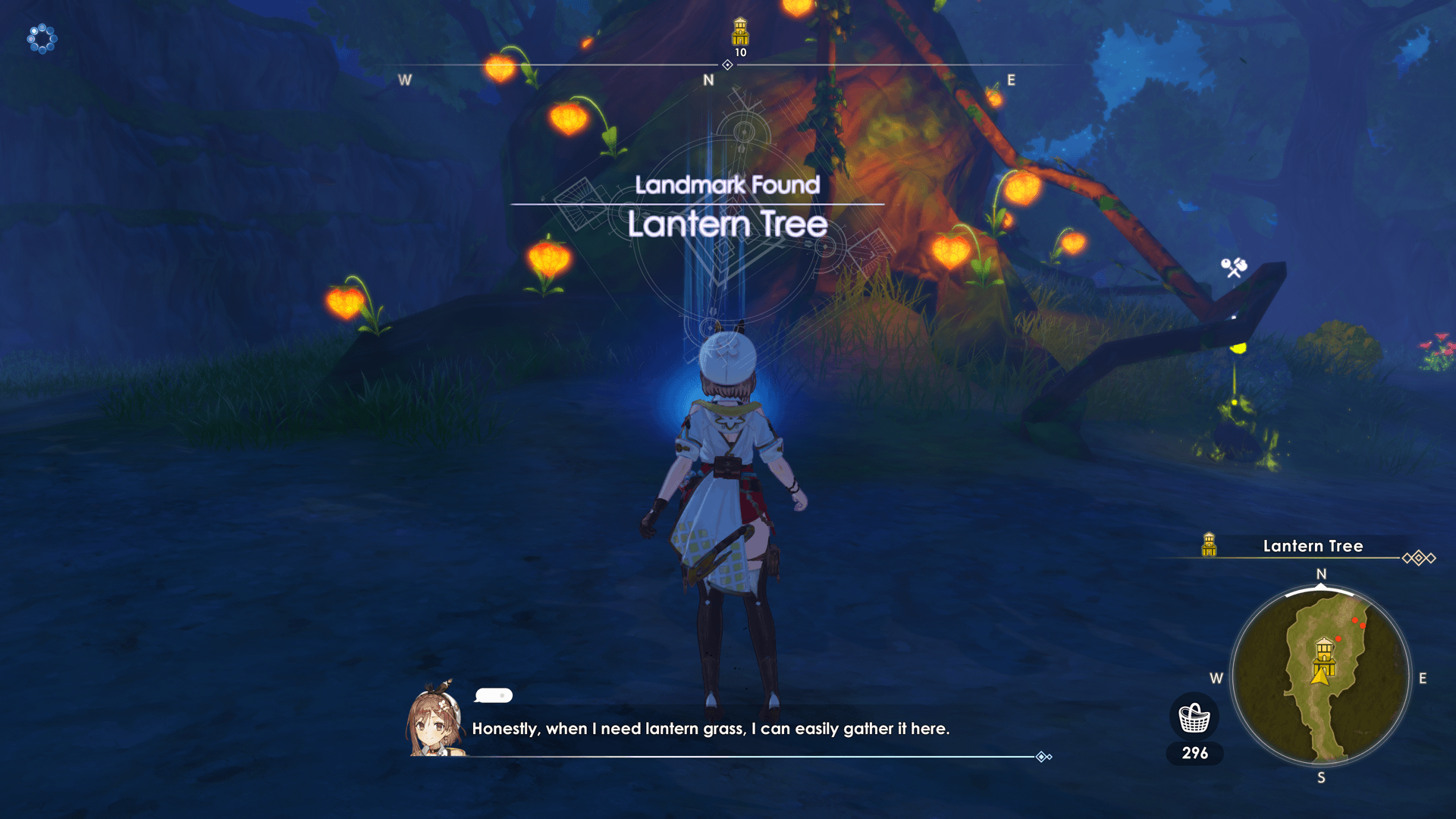
Once you reach a landmark, the clouds covering the Area Map will be removed, allowing you to view the surrounding area. See if you can find any new quests or treasure chests within the area.
Fast Travel
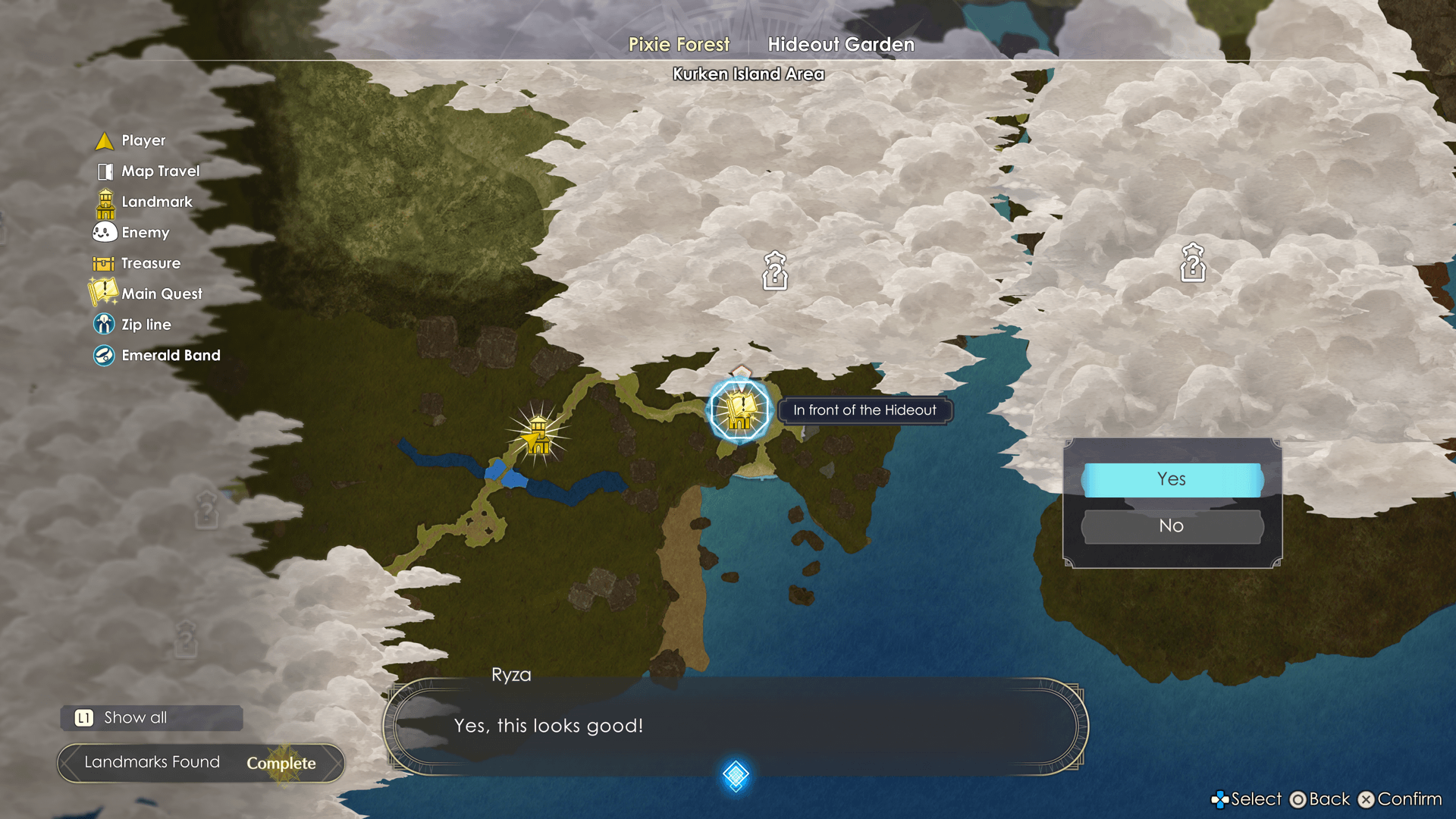
You can fast travel to landmarks you have previously discovered at any time.
This allows you to immediately move near the quest destination or areas with the ingredients you are looking for.
Fast Travel from Area Map
Select a landmark you wish to travel to and press the assigned button.
| Fast Travel | |||
|---|---|---|---|
| PS5® PS4® |
Switch™2 Switch™ |
Steam® | |
| PCGamepad | Keyboardand Mouse | ||
 (Tap) (Tap)  (Tap) (Tap) |
 (Tap) (Tap) |
 (Tap) (Tap) |
 (Tap) (Tap) |
Tracking Marker
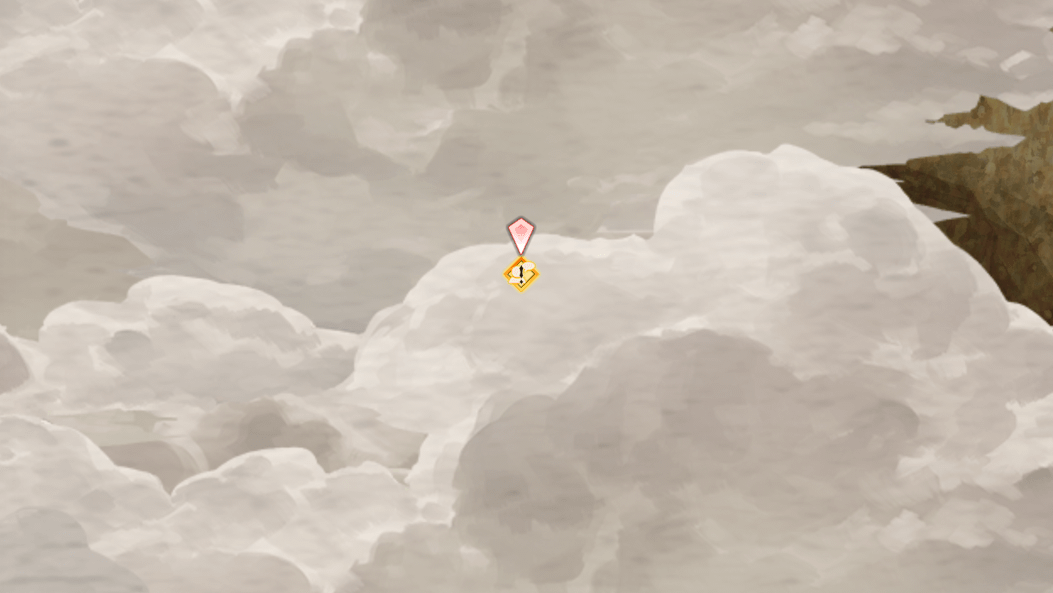
A marker for the quest you are currently tracking will be shown on the field and map.
Head towards the marker to get to your destination.
You can set the marker from Main Menu > Quests.
Quest Objective Area
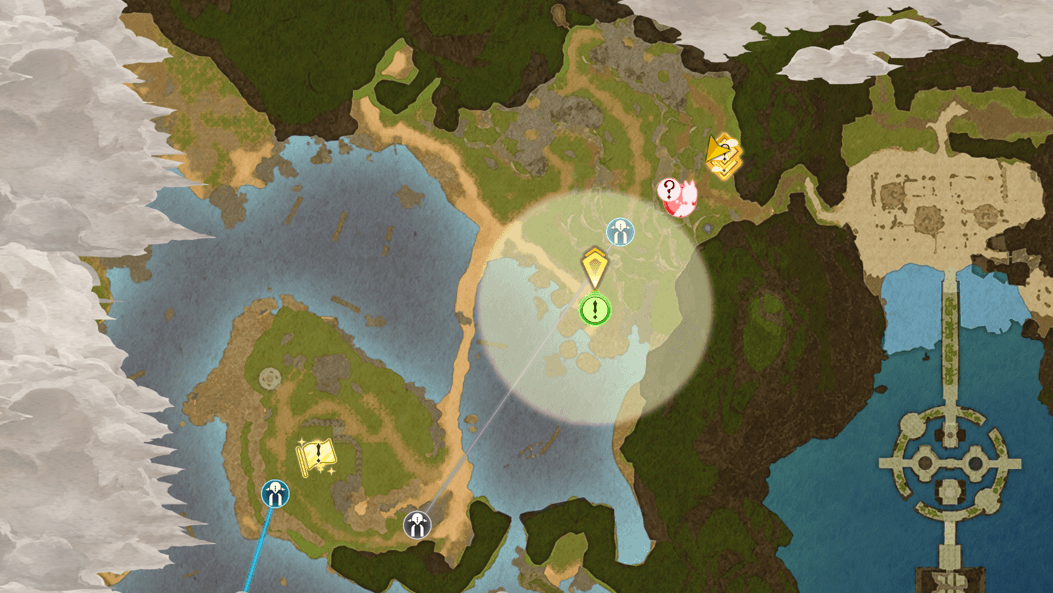
Some quests will take place within a circular area indicated on the map.
Once you enter the quest objective area, the quest icon and the marker will disappear. Search the area to achieve the objective.
Optional Marker
While on the Area Map, hold the assigned button to place a marker at your desired location.
The direction to the nearby optional marker will be shown on the compass, making it easier for you to navigate through the world.
| Optional Marker | |||
|---|---|---|---|
| PS5® PS4® |
Switch™2 Switch™ |
Steam® | |
| PCGamepad | Keyboardand Mouse | ||
| (Hold) (Hold) |
(Hold) |
(Hold) |
(Hold) |