Options
The Options menu can be used to change the controls and other in-game settings.
The settings available differ by platform.
These settings can be accessed by selecting Settings on the Title Menu or Options on the Main Menu.
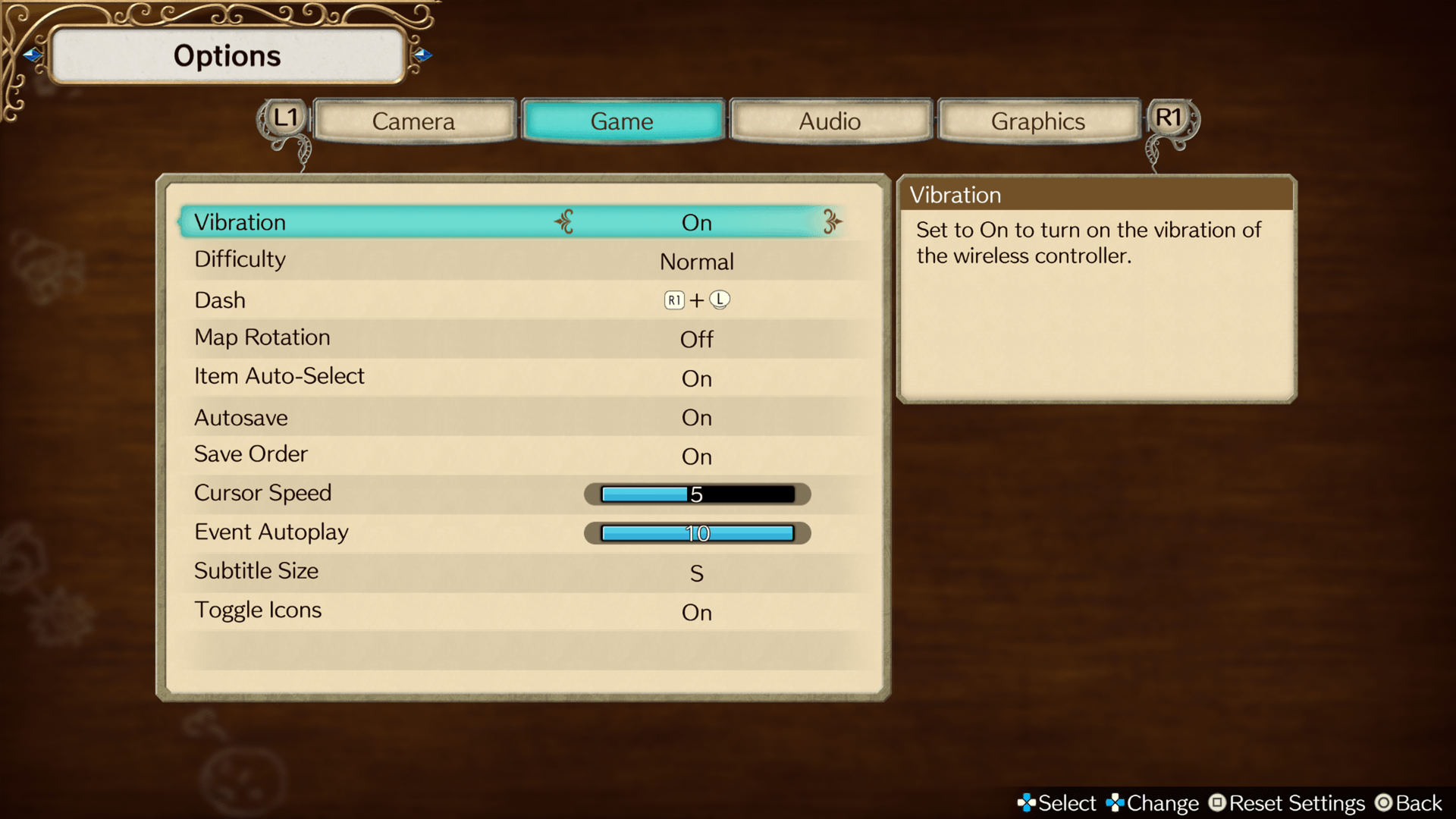
Game Settings
The difficulty level, auto-save feature, and other general game settings can be changed.
| Vibration | Set to On to enable controller vibration. |
|---|---|
| Difficulty | Change the difficulty of the game. Changing the difficulty in the middle of the game will not have any effect on your progress. |
| Sprinting | Set the controls used to sprint. |
| Map Rotation | Set to On to turn the map automatically with the camera. |
| Item Auto-Select | Set to On to automatically move the cursor to the next item after selecting an item. |
| Autosave | Set to On to activate Autosave. |
| Save Sort | Set to On to save the current item sorting setting. |
| Cursor Speed | Change the cursor speed on the World Map and other screens. |
| Event Autoplay | Change the autoplay speed of text during event scenes. |
| Change the Confirm Button | Changes the Confirm button. |
| Subtitle Size | Changes the subtitle size during events and dialogue. |
| Toggle Icons | Toggle the display of certain icons on the field. |
Graphics Settings
If the game is slow, lowering the quality of the graphics may improve it.
| Screen Resolution | Select the screen resolution. If the window mode is set to "Window," the game resolution will adjust to the window size. If it is set to "Borderless," it will be scaled to match the resolution of the display. |
|---|---|
| Window Settings | Change the window mode. Select the game screen mode from Window, Fullscreen, or Borderless. This can also be changed by pressing F9. Note: "Borderless" mode removes the frame of the window and stretches it to the size of the screen for a full-screen view. |
| Frame Rate Limit | Set the upper frame rate limit. Available options are 30, 60, 120, 144, or Unlimited. |
| Vertical Sync | Set the vertical sync on or off. |
| Overall Quality | Set the quality of the graphics. Selecting High, Standard, or Low will automatically change the relevant graphics settings. |
| Texture Quality | Select the quality of the textures. |
| Shadow Quality | Select the quality of the shadows. |
| Local Reflections Quality | Select the quality of the reflection processing. |
| Effect Quality | Select the quality of effects. |
| Anti-Aliasing | Adjust the smoothing of object edges. Available options are TXAA (high load), FXAA (low load), or Off (none). |
| DOF | Turn the blurring of objects that are not in focus on or off. |
| Ambient Occlusion | Turn the enhancement of shadow rendering on or off. |
| Bloom | Turn the glow from light rendering on or off. |
| Light Shafts | Turn the light rays from the sun on or off. |
| Draw Distance | Select the object display distance. |
| Point Light Distance | Select the point light distance setting. |
| Grass Draw Distance | Select the grass draw distance setting. |
| Grass Density | Select the grass density setting. |
| Texture Filtering | Select the texture filtering setting. |
| Shadow Draw Distance | Change the shadow distance settings. |
| Water Quality | Adjust the displayed quality of water. |
| LOD Distance | Set LOD (Level of Detail) distance. |
On the Steam® version
On the Steam® version these settings can also be accessed from the PC menu displayed by pressing the  key. Keyboard and Controller settings are also available.
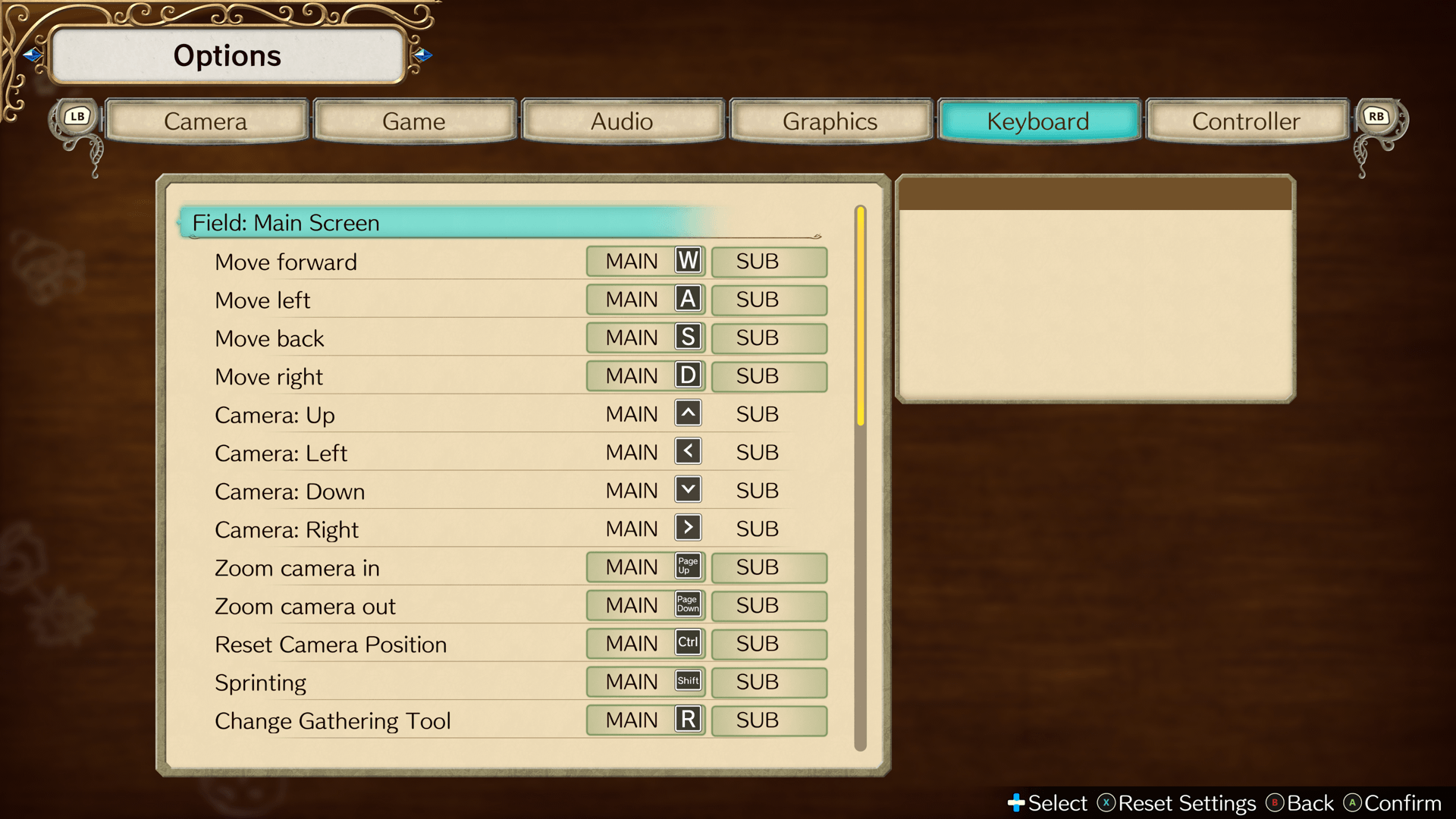
Keyboard
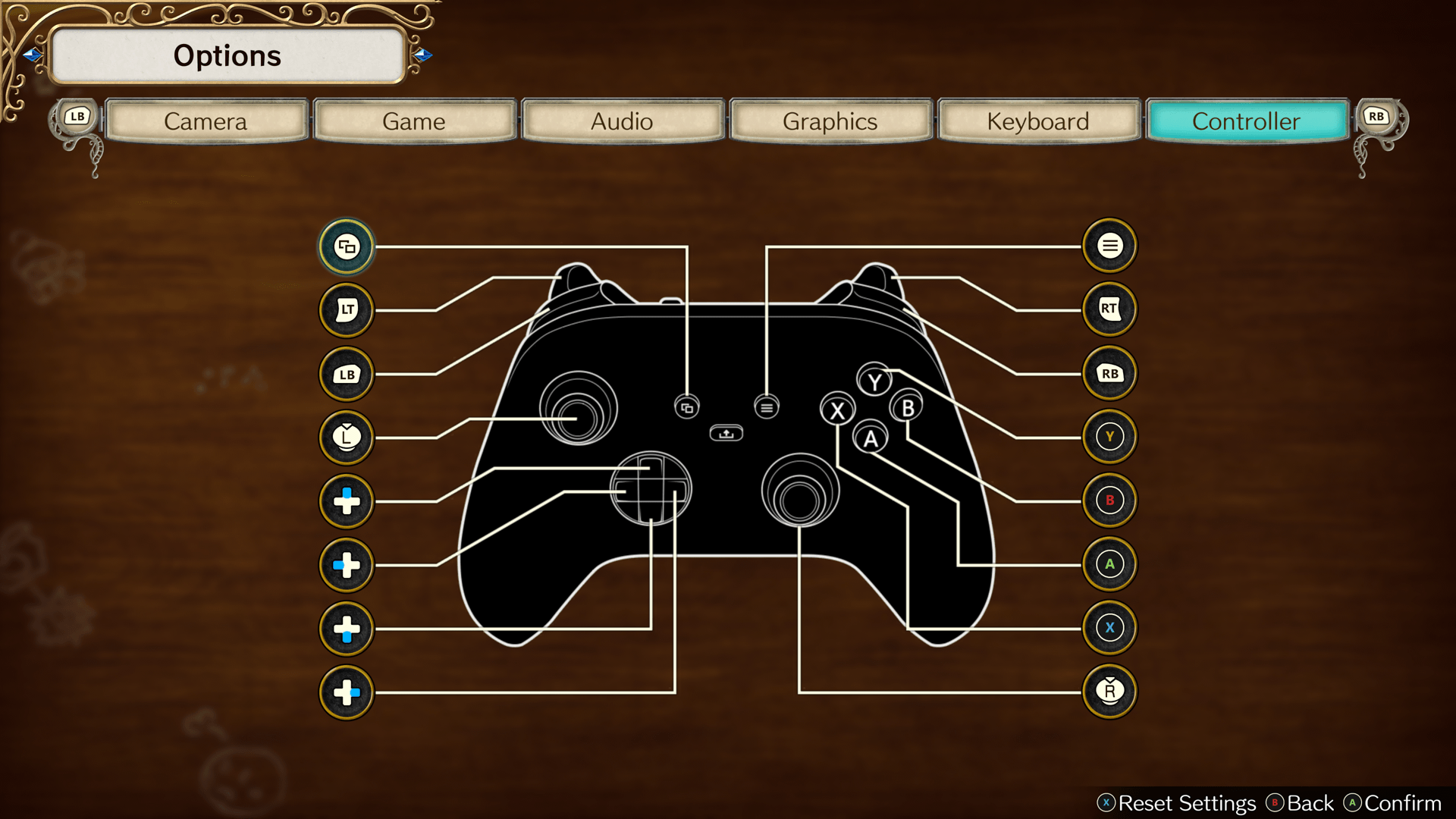
Controller